SnapFrames Guide
How to design, print, and assemble a frame.
Start here
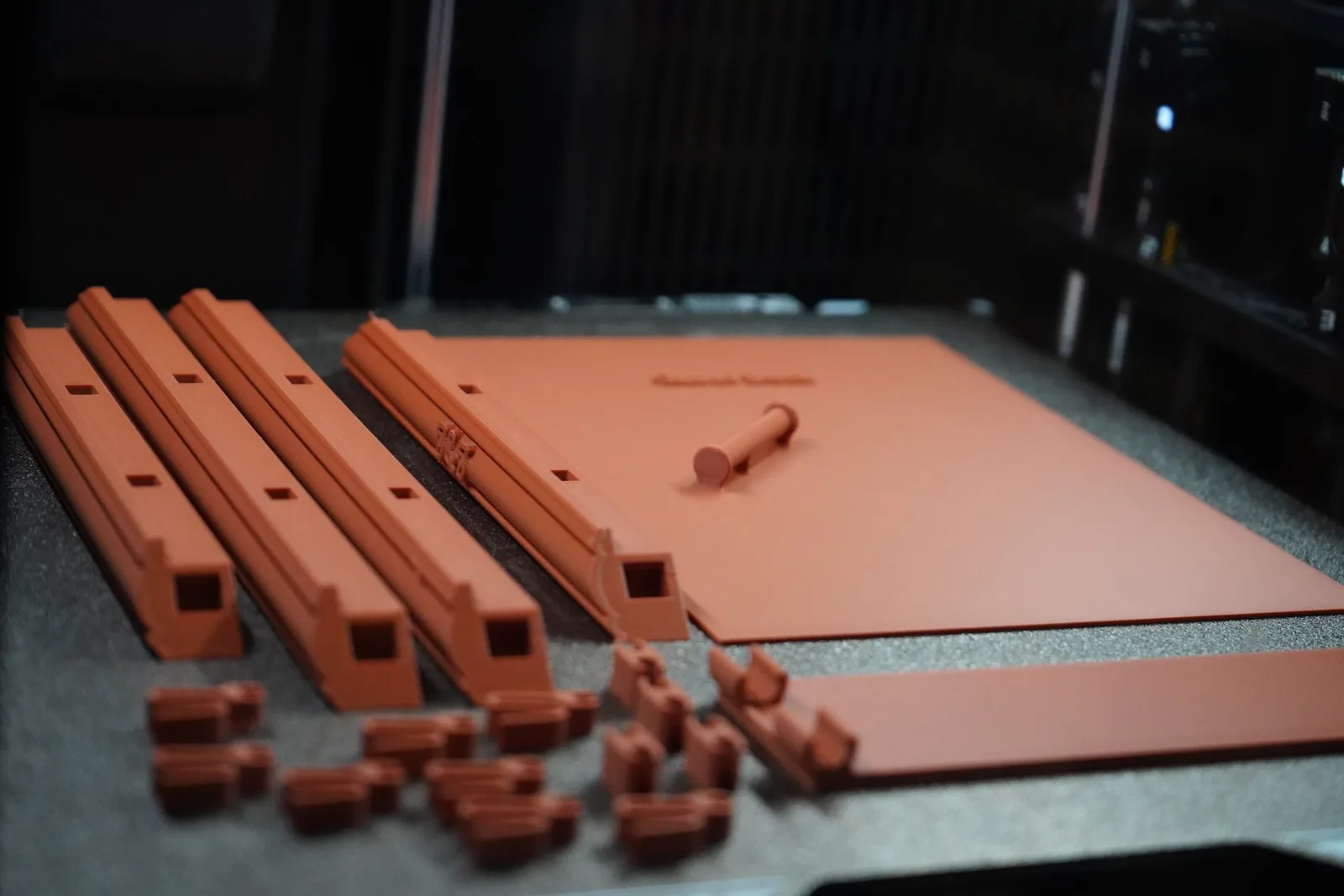
SnapFrames generates 3D-printable picture frames to the exact size you type in. A frame bigger than your build plate is split into pieces that snap together with printed clips. Smaller frames can print as one piece. Every frame is built from an edge profile (the cross-section shape) and a face design (the pattern or texture on the front), and both are yours to customize.
The fastest way to learn the generator is the built-in walkthrough. It opens the app and points at each control in order.
Start the walkthroughBuild a frame
The generator runs top to bottom. These are the steps in the order you meet them.
Build plate
Pick your printer or type the plate size. SnapFrames splits the frame into pieces that fit, and Smart Orientation turns pieces diagonally when that means fewer seams.
Opening size
Enter the size of the artwork, not the outside of the frame. Add about 0.2 mm to each side so the art slides in without forcing.
Shape
Rectangle and Hexagon can be any size, because they split into snap-together pieces. Circle, Oval, and Arch print as one piece, so they are limited to what fits on your plate.
Edge profile
The edge profile is the cross-section of the frame bar. It decides how the art is held. There are four types, each with Standard, Thin, and Thick presets and sliders for the exact dimensions. The Edge preview next to the sliders redraws as you move them.
Best for photos, glass, HueForge prints, and thin art. It loads from the back and printed prongs hold it snug.
Best for raised prints, cityscapes, and canvases that need clearance above the face. The art rests on a support ledge and grips a glue flange.
Best for canvas wraps and thicker pieces. A recessed ledge leaves a clean reveal around the art for that floating gallery look.
Best for backlit lithophanes. The pane clips behind the front lip and a lit backer plate sits further back, so the gap between them spreads the light.
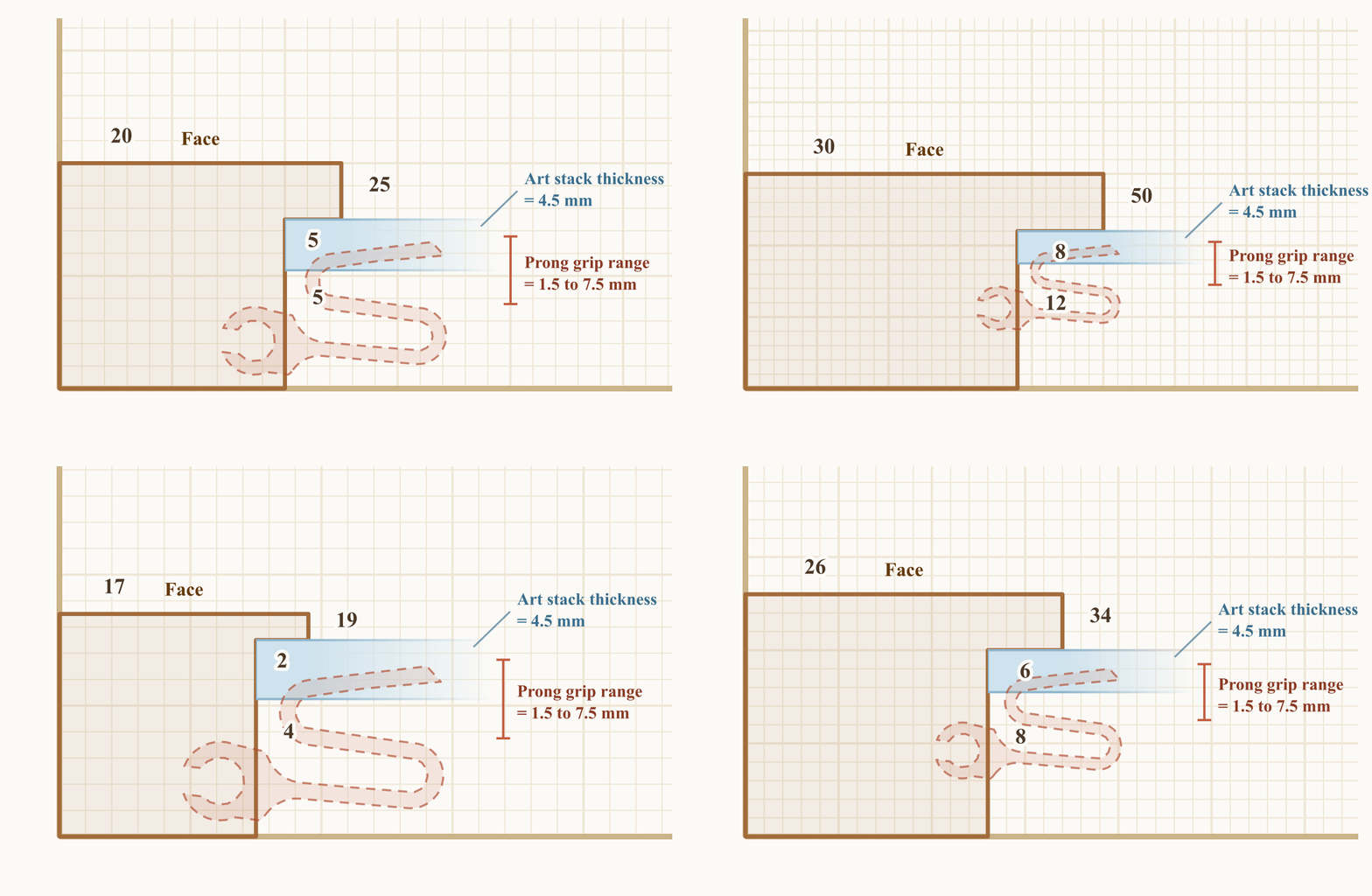
Drag Face, Height, Depth, and art thickness with live sliders to customize.
- Picture Frame holds photos, glass, HueForge prints, and other thin art. The art loads from the back and printed prongs hold it. Set the art thickness with the Art slider. The prongs grip a range of about 3 mm around that number, so you can swap in art of a different thickness later if you reuse the frame.
- 3D Art Frame is for raised prints and canvases that stand proud of the face. The art sits on a ledge and is glued to a ridged flange. There is no lip over the front.
- Floater Frame is for canvas wraps and thick pieces. A recessed ledge leaves a gap between the art and the frame wall.
- Litho Light Box holds a lithophane in front and a lit backer plate behind it. See the lithophane section.
To go past the sliders, open the full profile editor. It lets you drag the cross-section point by point, add an edge relief, and change the art stack. Apply uses the change now. Save keeps it as a named preset.
Face design
The face design is what prints on the front of the frame. Choose a wood grain, a preset pattern, a material, or build your own. The options are covered in Face designs below.
Face text and part labels
Face Text puts raised text or a logo on the front of the frame. It is off by default. Turn it on, type the text or upload a logo, and check the 2D preview. Face text is not available on circle, oval, or arch frames.
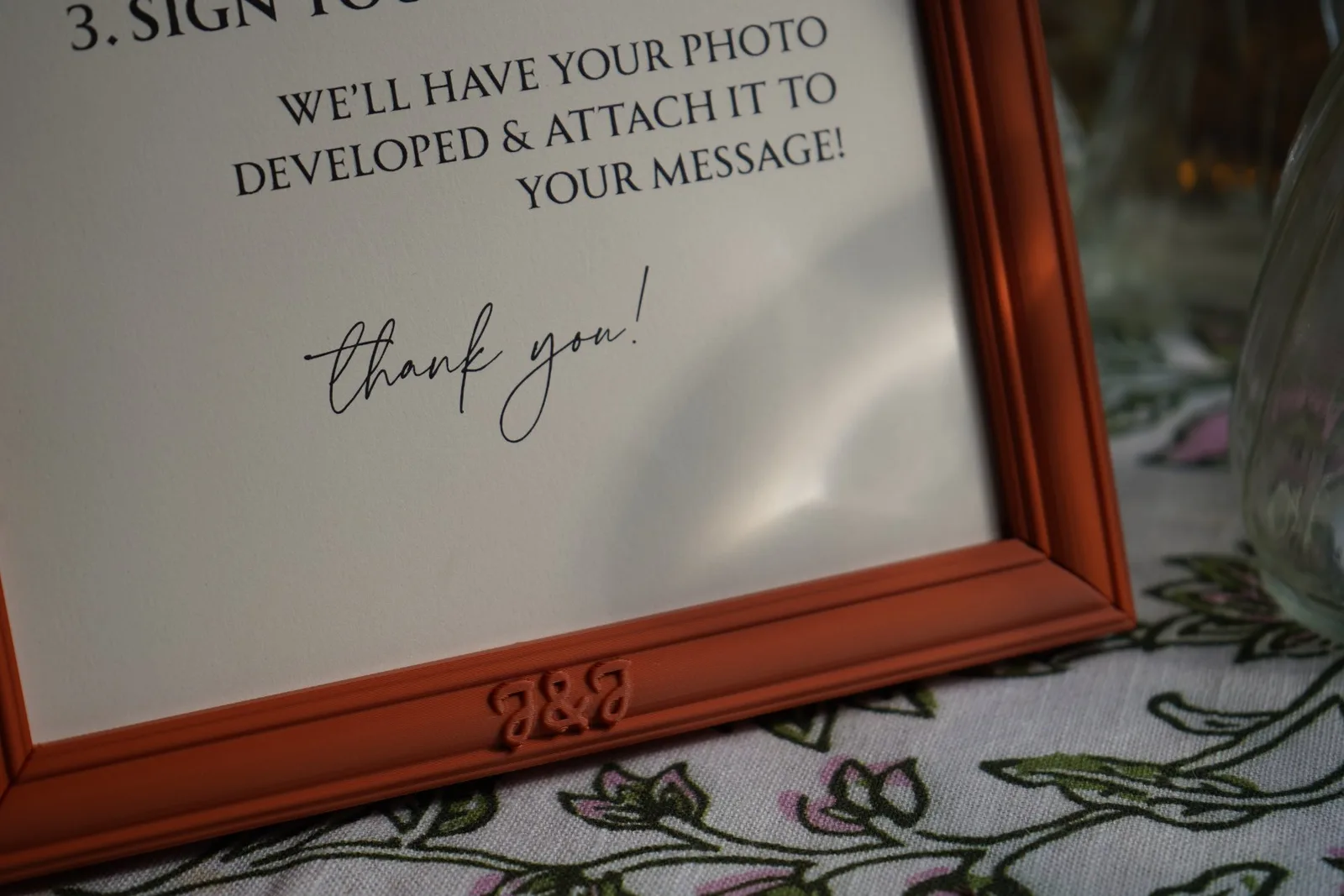
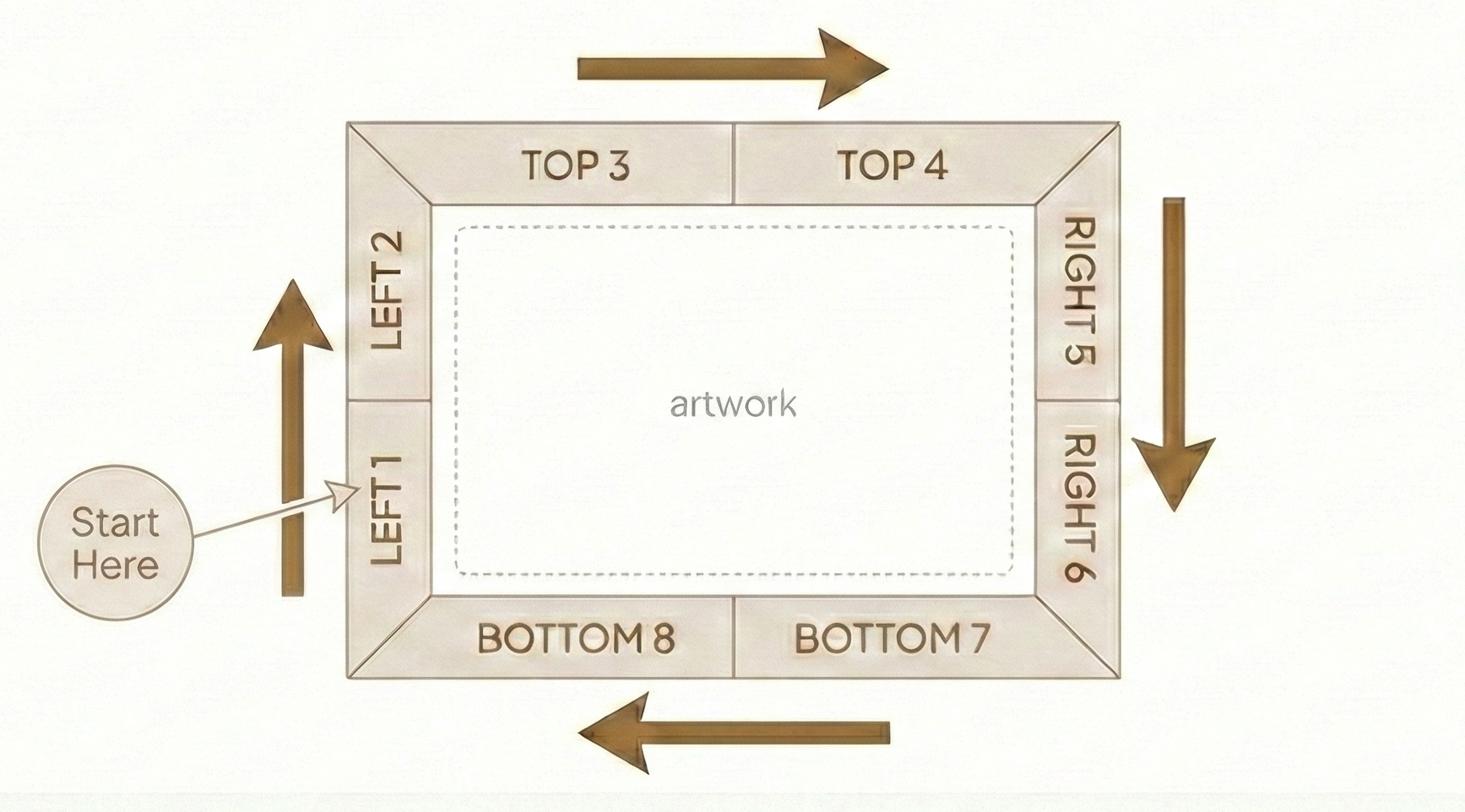
Part labels are raised text on the back of each piece so you know where it goes. The default label carries the edge name, a number, and the frame size. Numbering starts at the bottom of the left edge and runs clockwise. You can turn off the number or size, add your own text, or upload a logo. The Size and Height sliders scale the label and set how far it stands off the surface. Small frames may need a smaller size to fit.
Generate and preview
Keep Texture Quality on Draft while you are still changing things. It generates fast. Switch to Standard or Fine for the files you will print. Fine is only worth the wait on faces with small detail.
The 3D preview shows the Snap Kit, the assembled frame, the sample corner, and any accessories. Use Parts to hide pieces, Measure to check a size, and X-Ray when the texture hides a detail. Generate a Sample corner first if you want to check the snap fit and texture before printing the whole frame.
Accessories
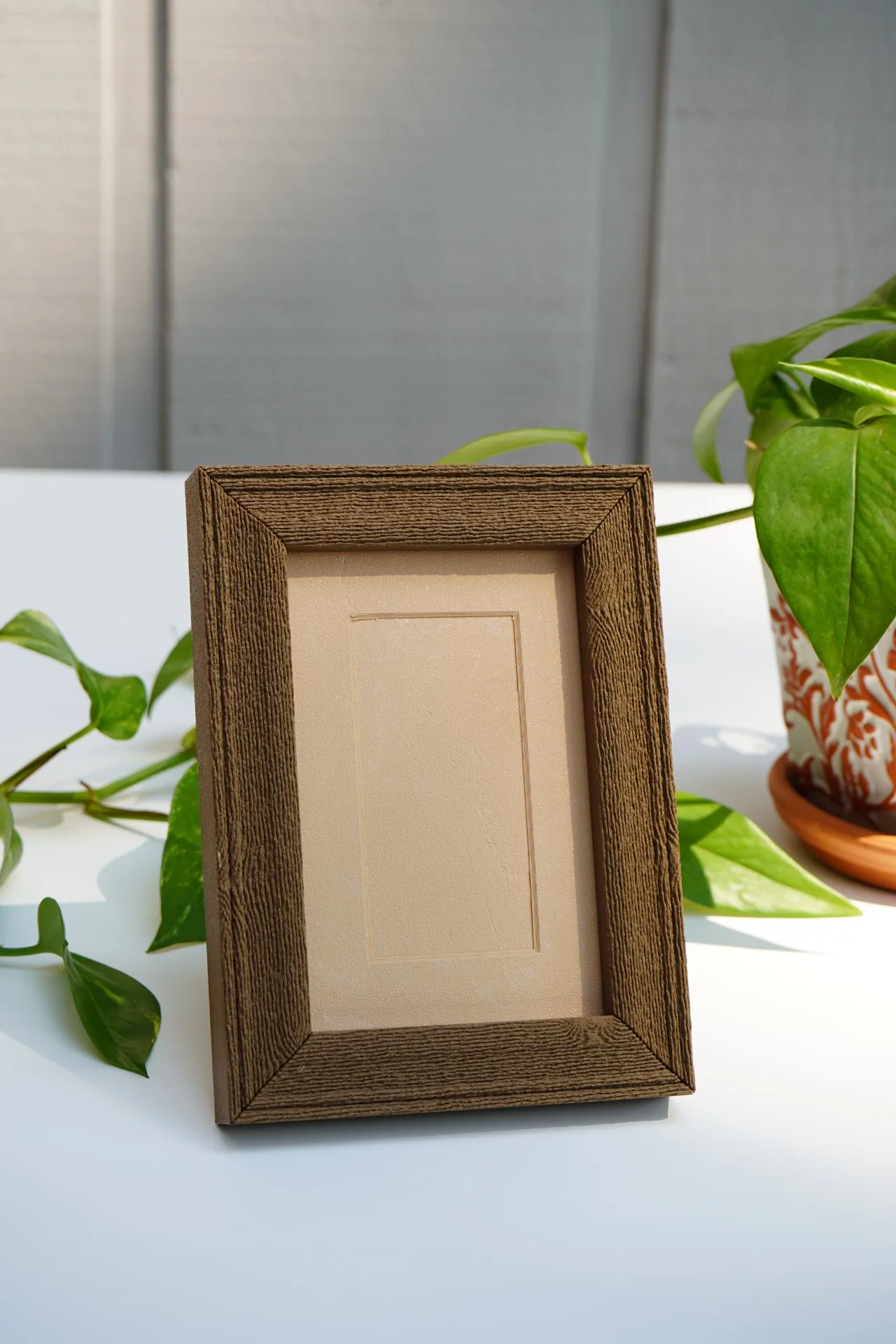
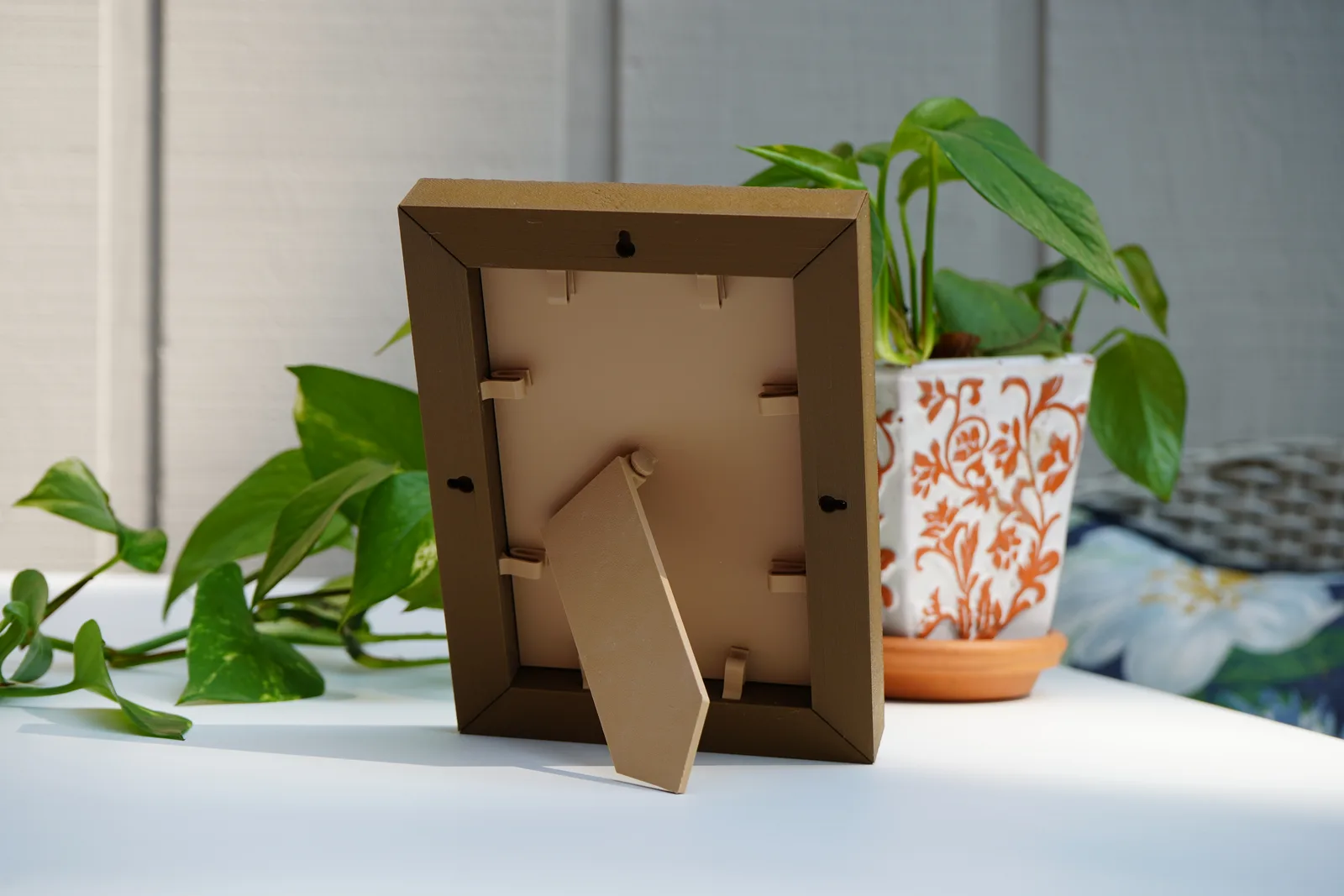
Backer plate: a solid back that snaps onto the frame, with or without a kickstand for a tabletop.
Mat: a printed border with an opening you size yourself. Print it, or use it as a template to cut mat board.
Embossed note: raised text on the backer plate, with font size and depth controls.
Download
The main download is a print-ready project (.3mf), one per kit: Snap Kit, One-Piece Kit, or Sample Kit. Every part is already placed on a build plate and every color is assigned. Choose Bambu Studio to embed your printer and filament settings, or Universal to leave printer settings out so OrcaSlicer and other slicers open it with your own setup.
If you want separate files, tick the parts you need for a ZIP. It also includes a settings file you can import later to get the same frame back. For colored designs, choose 3MF for Bambu Studio or OBJ for OrcaSlicer.
Face designs
Every face design is read as a height map. Light areas rise, dark areas sink. That is how a flat picture becomes relief on the printed frame, and why high-contrast, seamless artwork prints cleanest.
Smooth and wood grain
Smooth is a plain face. The wood grains are generated per frame, so no two are the same. Advanced Wood Options changes grain density, structure, and knot count.
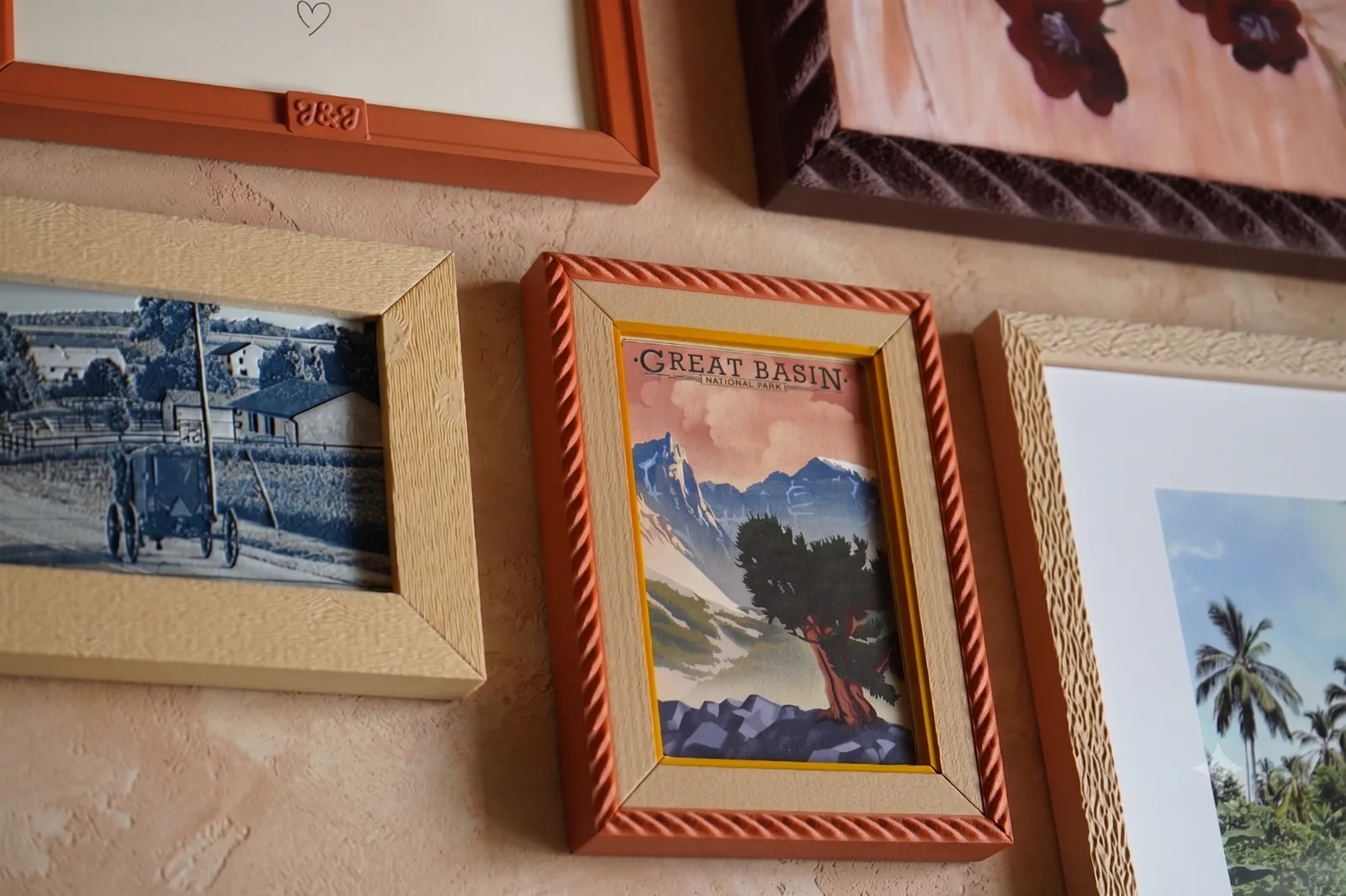
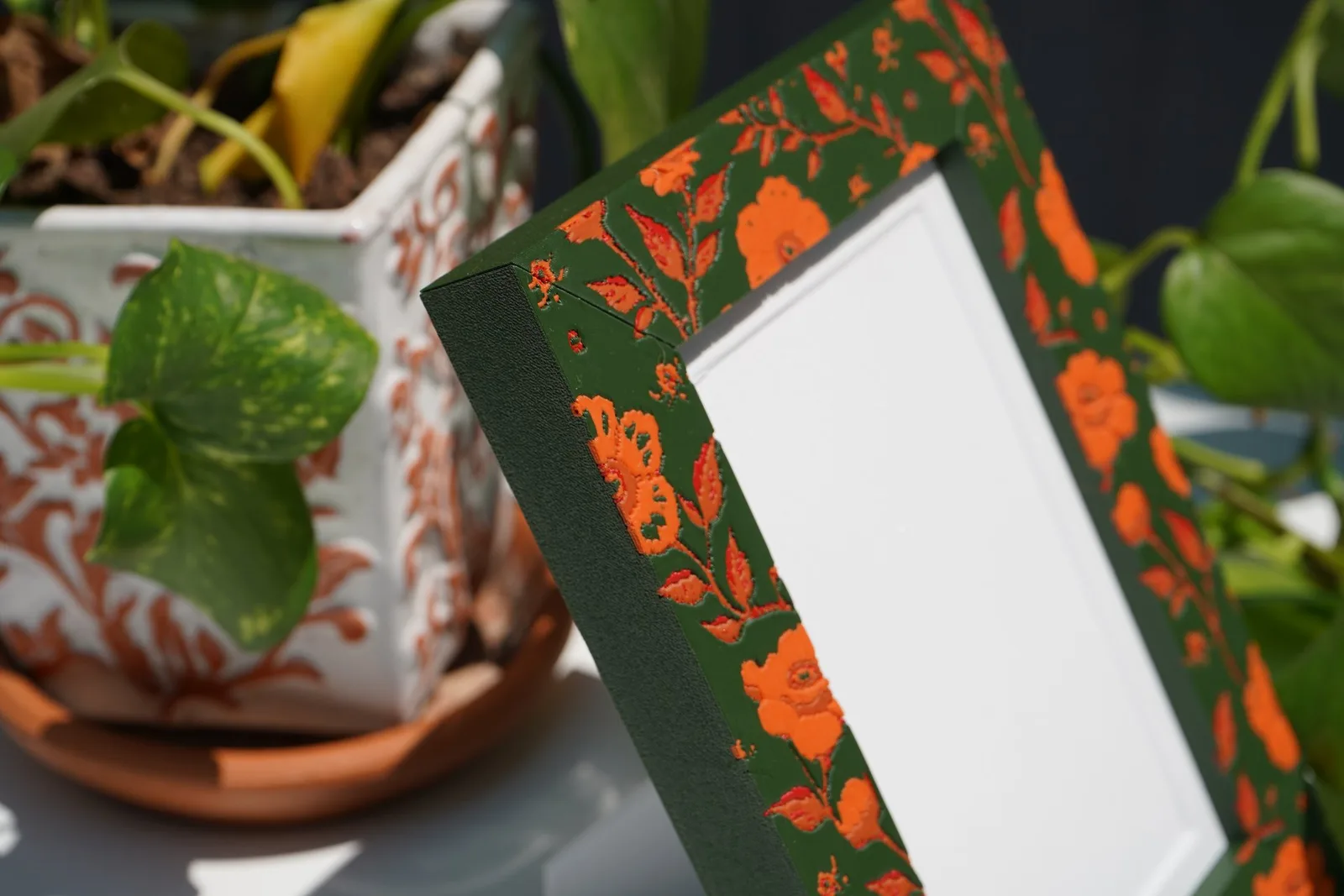
Printed frames from the community gallery. Click one to enlarge.
Preset patterns
Built-in tileable patterns, sorted by category. Click the pencil on any preset to edit it and save your own version.
Materials
Materials carry color and height together, so marble prints with real veins and hammered metal prints with real dents. Pick one from the library, or describe one ("weathered walnut", "hammered brass") and SnapFrames generates it. A generated material costs 3 credits and is saved to your account.
Your own patterns
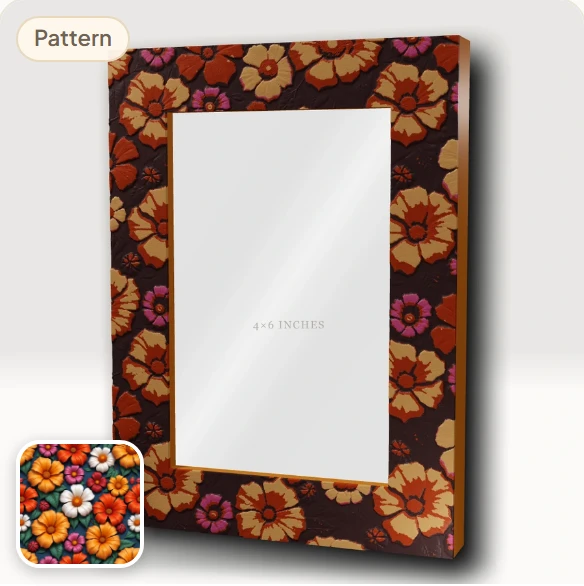
Under Patterns, describe a pattern in a sentence ("tiny blue florals on cream") to generate a seamless tile for 1 credit. Check the 2x2 preview before applying it. Anything shared by other users is in the community gallery and free to use.
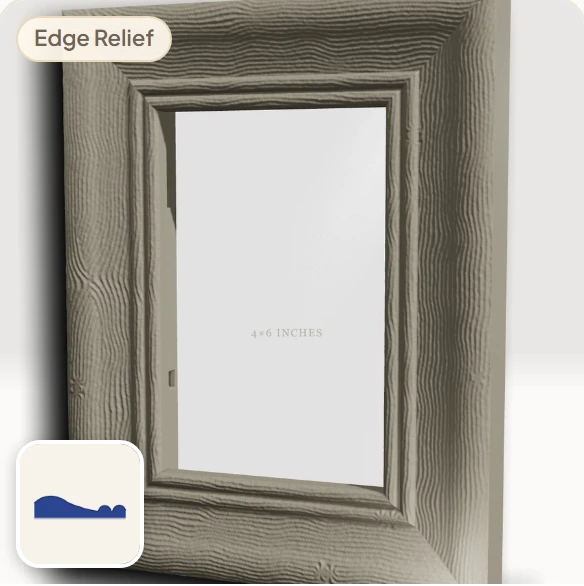
Edge relief
Draw a curve and SnapFrames shapes the face to it, raised or recessed. Use it alone for a beveled, stepped, or molded edge, or stack it under a pattern in the Layer Composer.
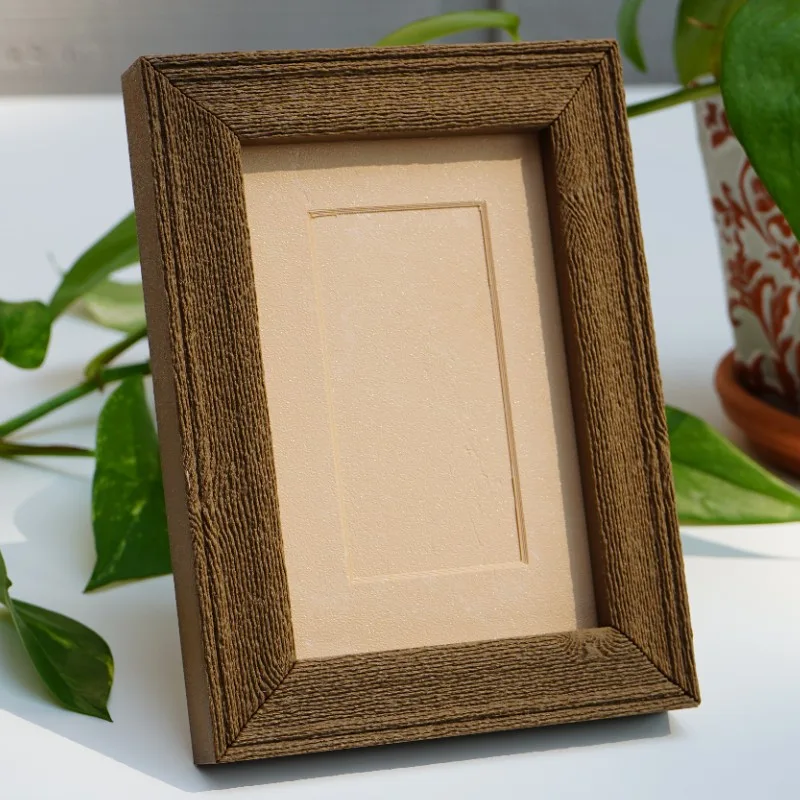
Layer Composer
The Layer Composer stacks layers into one face: a pattern or material, an uploaded image, and an edge relief. Each layer has its own depth and opacity, and you choose which layer drives the geometry. Directional patterns can be rotated per edge so the design reads the same all the way round. It handles shape only. Color is assigned later in Colorize.
Credits and saved designs
Materials cost 3 credits, patterns cost 1. New accounts start with 30. Premium and Commercial members get more, and credits never expire. Everything you generate is kept in My Generations and can be reused on any frame at no cost. Custom designs save to My Designs and sync across devices when you are signed in. Sharing a make to the community gallery earns credits.
Lithophane frames
BetaA lithophane frame is a small backlit light box. The lithophane sits at the front behind the lip, a lit backer plate sits further back, and the gap between them turns a strip of separate LEDs into one even glow. It takes the same edge reliefs and face designs as every other frame. This frame type is new, and we want to hear how it goes so we can keep refining it.
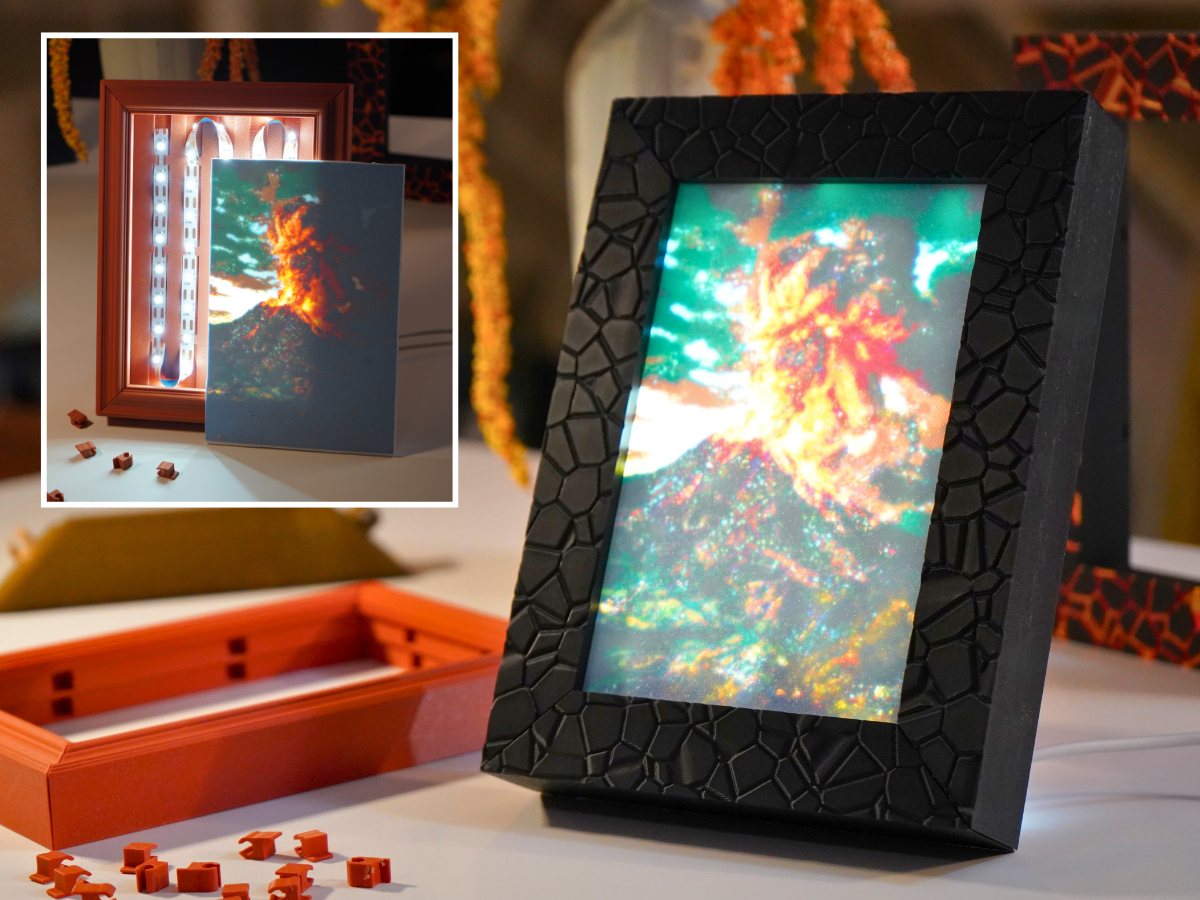
The front works like a picture frame. The lithophane loads from the back and a printed prong clips in behind it. Lithophanes use a compact prong by default to save depth. A second, deeper ledge carries the backer plate on its own set of prongs. The backer plate prints with a channel for the LED strip.
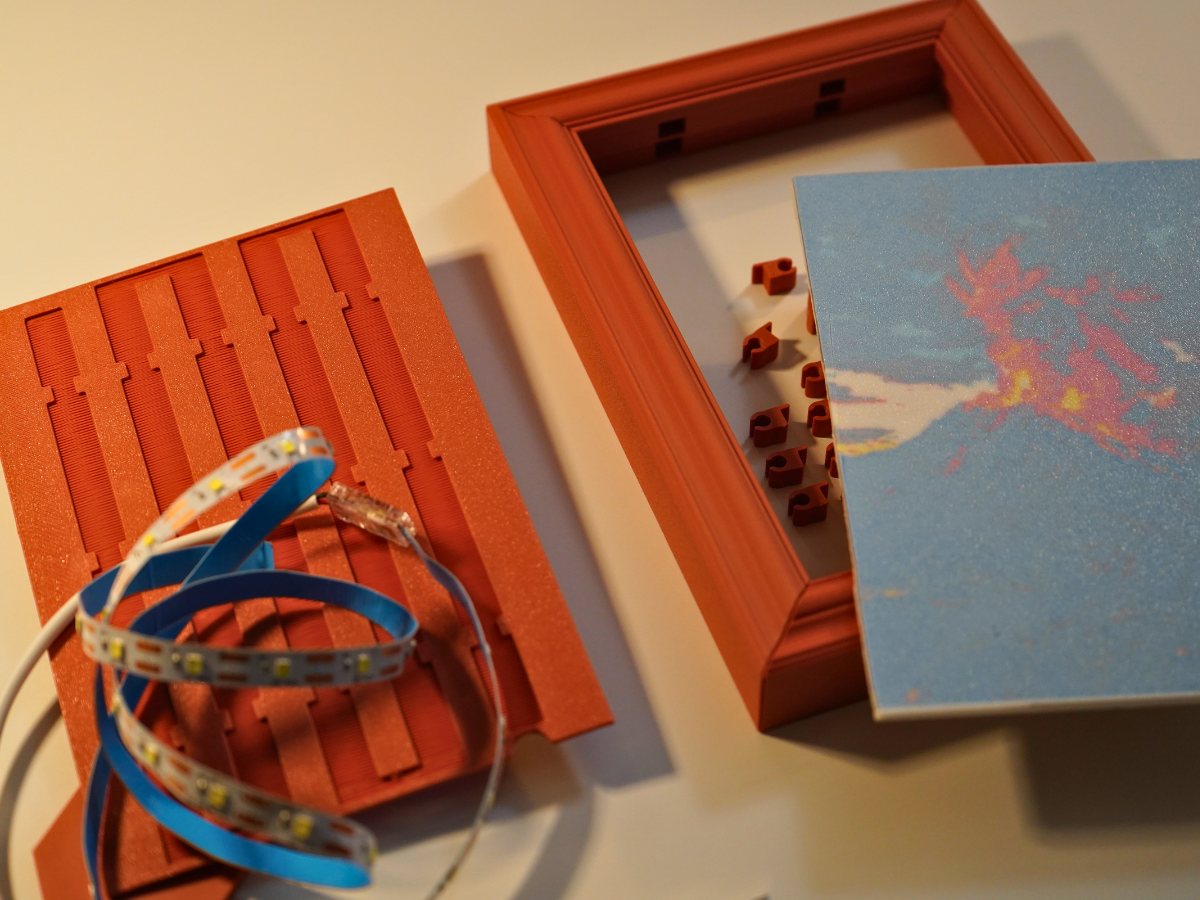
The optional diffuser is a thin translucent sheet behind the lithophane. It blends the LEDs into one soft wash.
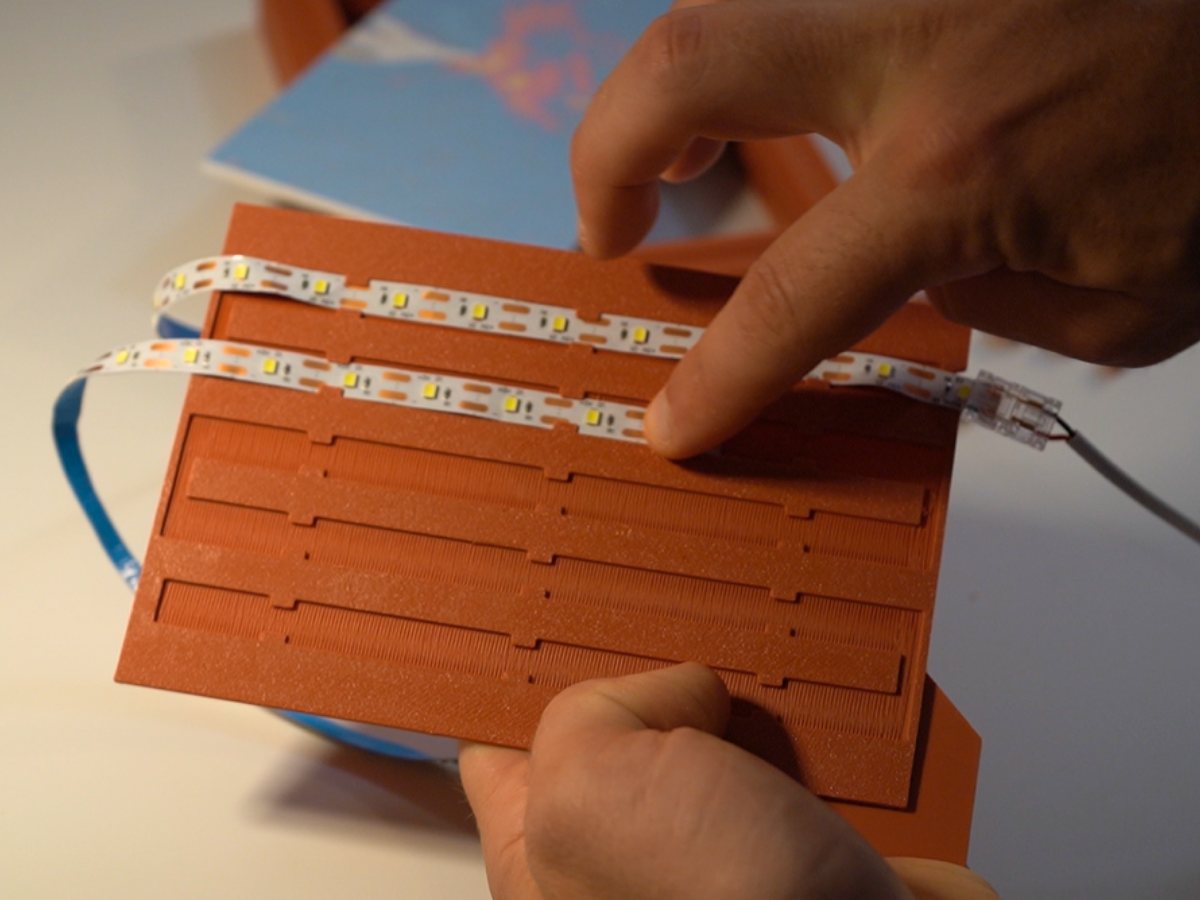
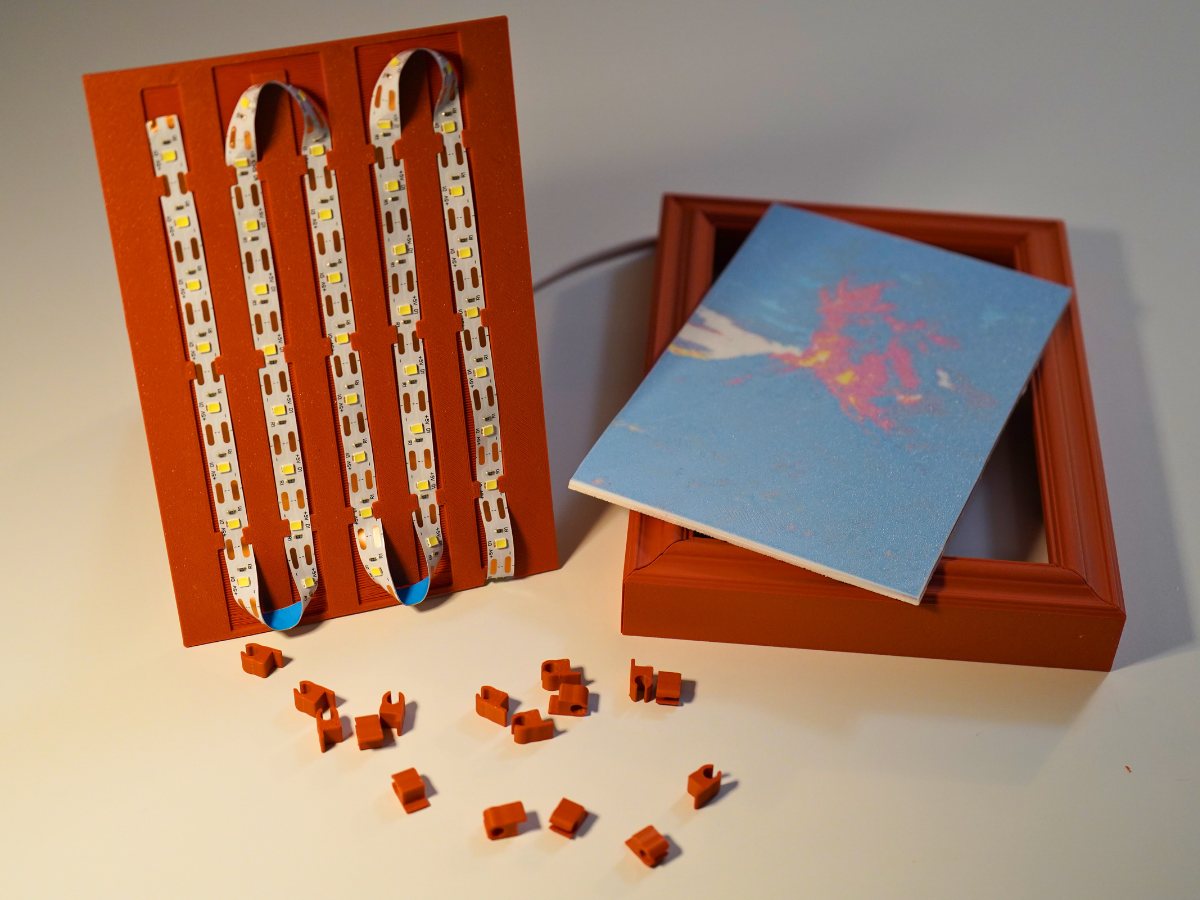
The gap between lithophane and backer plate is set in the edge profile editor. Keep it at least 15 mm so the light spreads evenly.
Making the lithophane
SnapFrames makes the frame. You bring the lithophane. These are the tools and parts we use.
- Make My Lithophane, turns a photo into a printable pane.
- CMYK lithophane guide, Bambu’s walkthrough for color lithophanes.
- 6500K white LED strip, the strip that fits the backer channel.
- Solderless connector, splits one strip across several frames.
Colorize
Colorize opens after you generate. It is where the colors that will actually print get assigned. The preview colors before this step are only for the screen.
- Filaments: add the colors you own. Everything else is assigned from this list.
- Face pattern: choose how many colors to print. SnapFrames splits the design into that many slots. Fewer colors are easier to print, more keep more of the texture.
- Bias: nudge how much of the face each color claims when the automatic split is close but not right.
- Painting: pick a tool and a filament, then paint faces directly in the 3D preview.
- Part colors: colors for the clips, prongs, backer, kickstand, and mat.
Slice and print
Settings
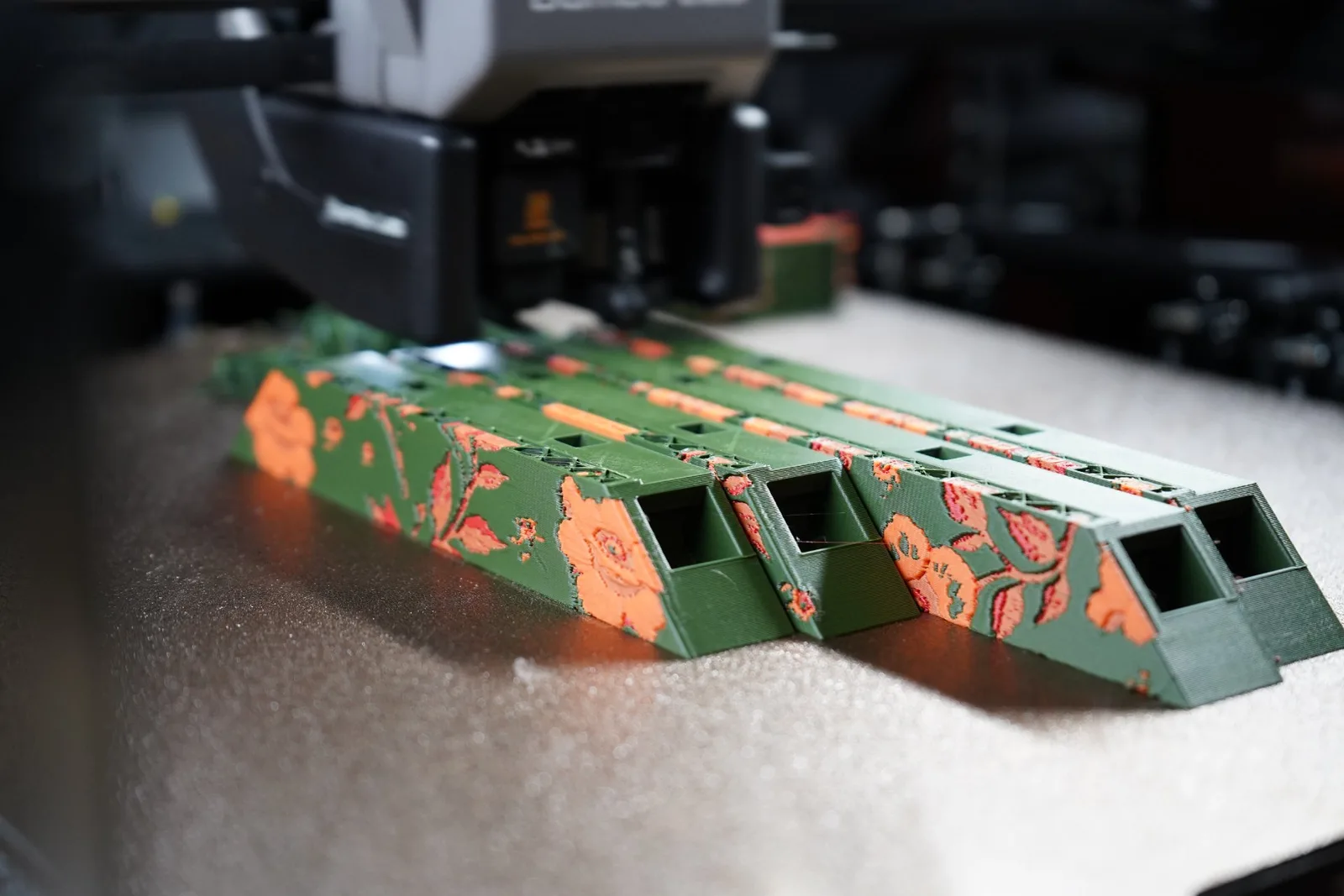
The default profile on most FDM printers is fine. Use normal wall counts and 15 to 20 percent infill. Set the wall generator to Arachne if your slicer has it, because it handles the variable-width lines in textures better. Use 0.20 mm layers for most frames and 0.12 to 0.16 mm for fine patterns.
Print-ready project
Open the .3mf. The plates are packed, every part is oriented, and every color is on a filament slot. Load the matching filaments, slice, and print.
Separate files
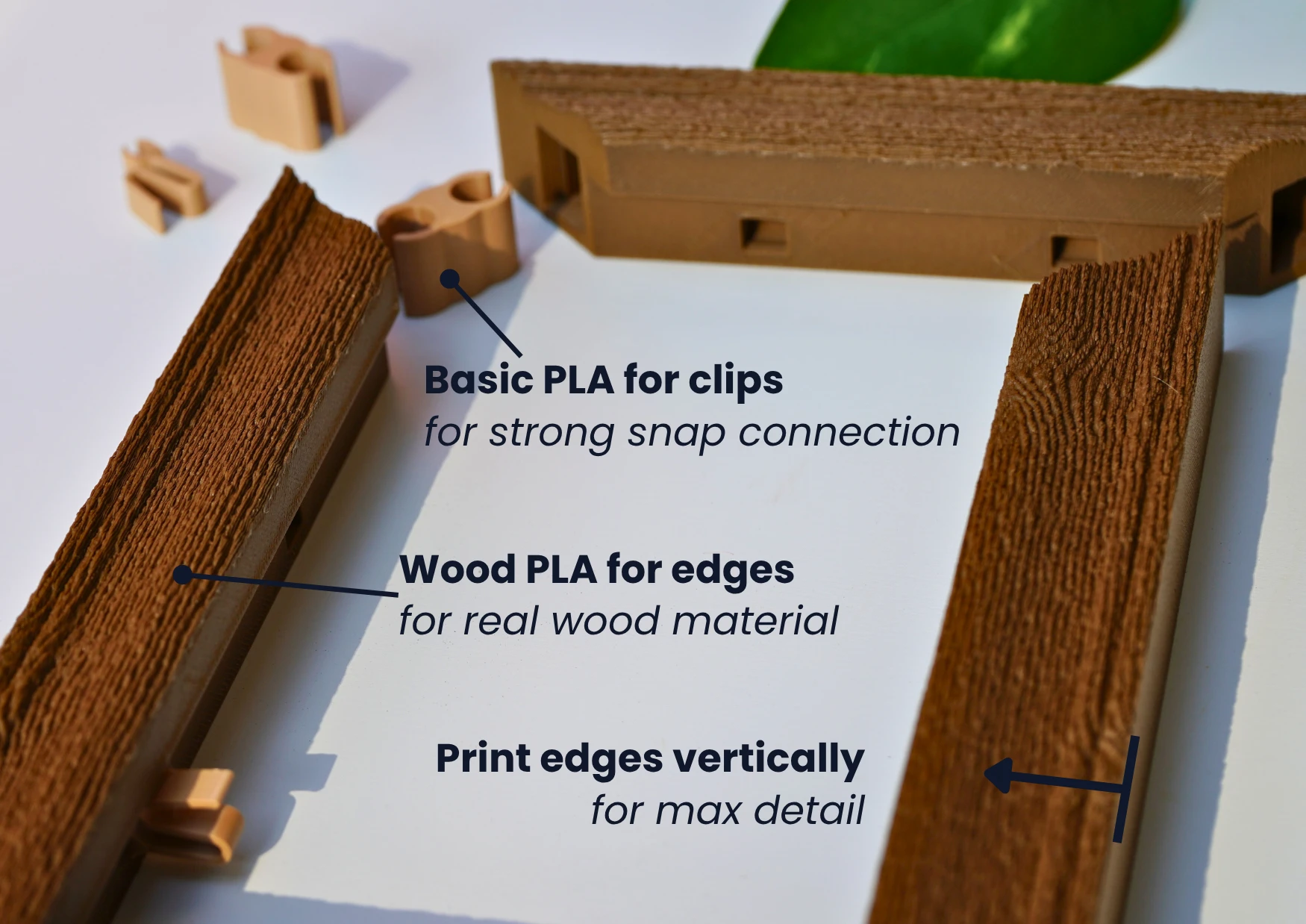
If you downloaded a ZIP instead, import the files into your slicer. When it asks whether to load them as one object, answer No. Then right-click the plate and choose Arrange. Frame pieces are already oriented so the face prints vertically, which gives the sharpest texture.
Bambu Studio: import the 3MF. It reads the palette and assigns filament slots. Accept the “Standard 3MF Color Parsing” prompt if it appears.
OrcaSlicer: use File > Import on the OBJ, not Open Project. Set the color count to match your design in the import dialog and the regions arrive colored, with your printer unchanged. A 3MF also works in Orca, but you then set each filament color by hand. The exact colors are listed on the download screen.
Filament
Print the visible edges in wood PLA if you want a real wood surface, and print the clips and prongs in basic PLA. Wood-filled filament varies more in size, and the snap parts need tight tolerances to hold. Print a sample corner first to check the fit, and use dry filament.
Matte PLA gives a non-glossy finish, and dark colors hide seams best. Silk PLA suits accent strips. PETG is stronger if the frame will be handled a lot.
Filaments we use
- Matte black PLA, hides seams
- Matte white PLA
- Light brown matte PLA, for wood grain
- Matte chocolate PLA, for wood grain
- Matte wood brown PLA, for wood grain
- Metallic gold PLA, for accents
As an Amazon Associate, SnapFrames earns from qualifying purchases.
Tips
One-piece frames
Tick One-Piece Frame in the Generate section to get the whole frame as a single part with mitered corners. No clips, no assembly. Picture frames keep their prong sockets and the prongs are included. It prints flat, face up, so part labels are left off and some face designs need supports. Fine relief comes out a little softer than on vertically printed edges. It is only offered when the assembled frame fits on your plate.
Two colors without a multi-color printer
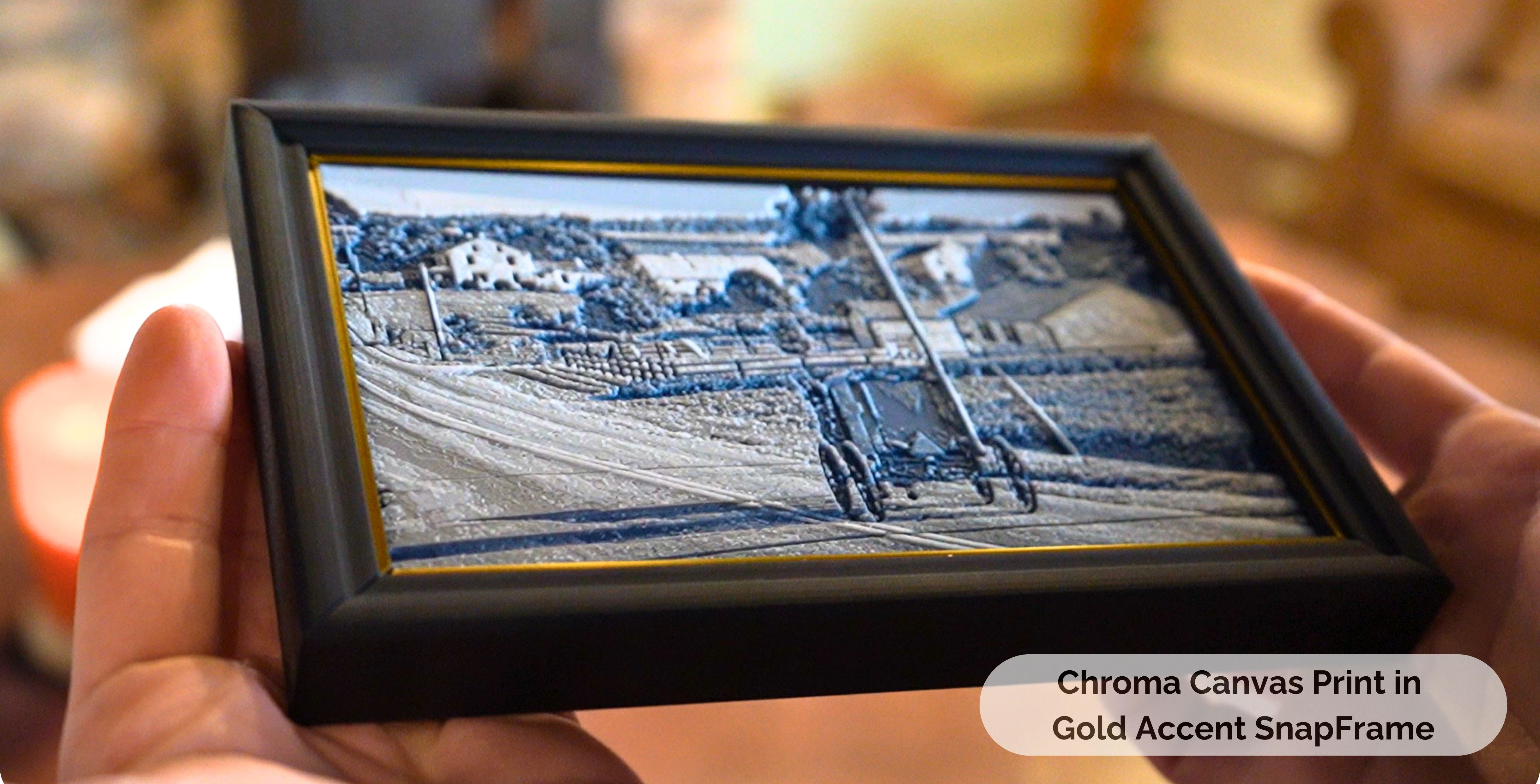
On a one-piece frame the face points up, so you can change filament at a layer height in your slicer. A gold accent on a black frame is one filament swap. Printers with an AMS or similar do the swap for you.
Large frames
Print a sample corner before committing filament. Add a drop of glue at each joint on frames with many pieces. Mount the art on chipboard or another rigid backer, and hang the backer, not the frame.
Glass and mats
Clear acrylic sheet scores and snaps to size with a utility knife and goes in front of the art like glass, or behind a photo as a stiffener. For a cut mat, print the SnapFrames mat and use it as a template on mat board and cut it with a craft knife.
That is the whole guide. The generator is one click away.